How to Set Up a Service-Area Business on Google Business Profile in 2026
How to Set Up a Service-Area Business on Google Business Profile in 2026 Elena runs a house-cleaning business from her home in a small Ohio town. Her customers never come to her house — she drives to theirs, town after town. When she set…
How to Set Up a Service-Area Business on Google Business Profile in 2026
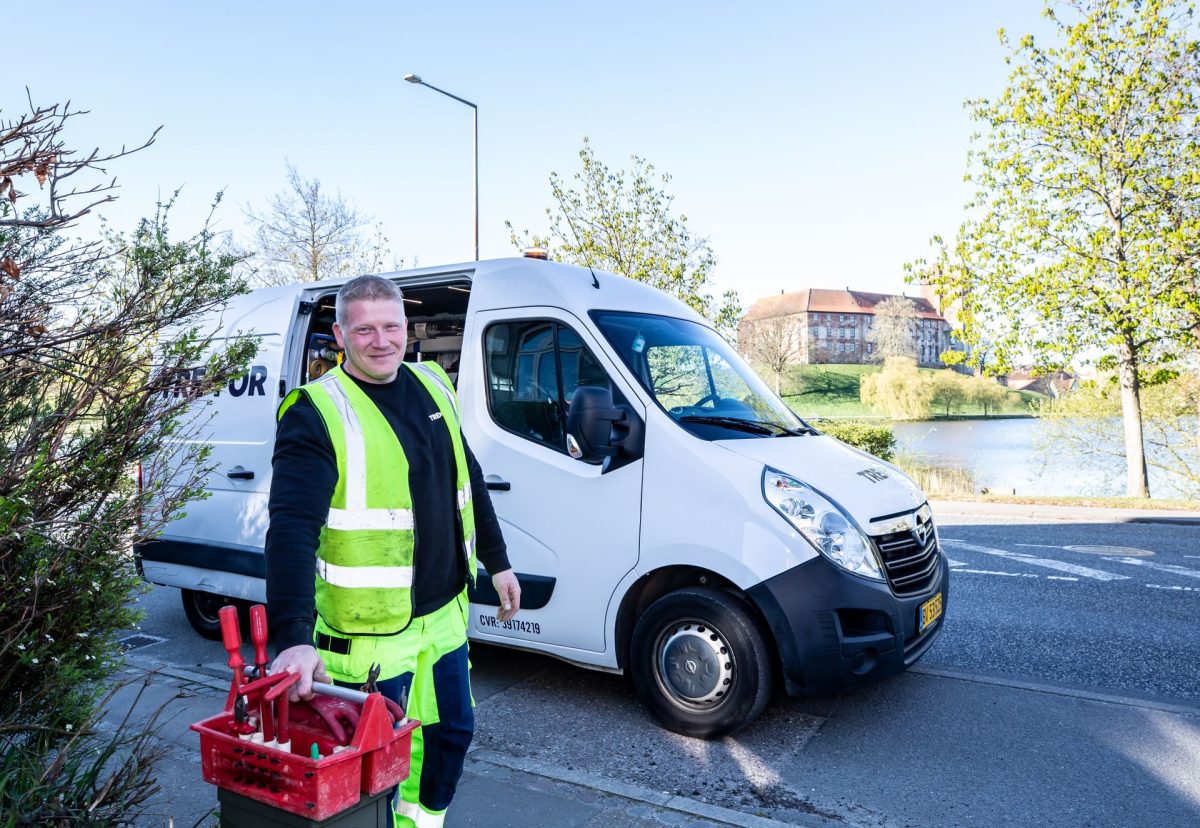
Elena runs a house-cleaning business from her home in a small Ohio town. Her customers never come to her house — she drives to theirs, town after town. When she set up her Google Business Profile, though, Google showed her home address to everyone online, and customers two counties away kept calling, even though she never worked there.
Elena's problem is common, and it has a built-in fix: Google's service-area business setup, for businesses that travel to customers instead of receiving them at a shop. Set up right, your home address stays hidden while Google shows the towns you actually serve.
The short answer
To set up a service-area business on Google Business Profile, answer "No" when Google asks whether customers can visit your location, then add the cities or ZIP codes you serve — up to 20 areas, within about two hours' drive of your base. On an existing profile, use Edit profile, then Location, to hide your address and add areas.
Key takeaways
- A service-area business visits or delivers to customers; it does not serve them at its own address.
- Hide your home address if customers never come to you — Google expects it, and it protects your privacy.
- List up to 20 service areas, by city, town, or ZIP code — never as a radius or a whole state.
- Keep the area within about two hours' drive of your base, and only list places you genuinely serve.
- Approved edits can take up to 48 hours to show publicly.
- A P.O. box, rented mailbox, or virtual office is not an acceptable business address.
The numbers up front
- Maximum service areas per profile: 20.
- Recommended outer limit: about 2 hours' drive from your base.
- Time for an approved edit to appear: up to 48 hours.
- Cost: $0 — Google never charges for a profile.
- Profiles per location: 1, for each place with its own staff and service area.
- Time to fix an existing profile: about 10 minutes, once your town list is ready.
First, which kind of business are you?
Google sorts businesses into three setups, and picking the wrong one is the mistake behind most service-area problems. Work out which row you are in before you touch any setting:
| Your setup | What it means | What customers see | Examples |
|---|---|---|---|
| Storefront | Customers come to you during your posted hours | Your street address | Bakery, boutique, auto repair shop |
| Service-area business | You go to customers; they never come to your address | Only your service area, no street address | Plumber, house cleaner, lawn care, mobile car wash |
| Hybrid business | Customers come to you AND you also travel to them | Your street address plus your service area | Auto shop that also does roadside calls, salon with a mobile service |
The test is simple: if a customer walked up during business hours, would someone be there to serve them, with signage showing your name? If no — you work from home, a van, or a workshop customers never visit — you are a service-area business, and your address should be hidden. If yes, keep the address visible and add a service area: the hybrid setup.
This matters most for small-town service businesses — the handyman driving between farms, the lawn-care crew, the mobile car wash, the house cleaner. Our guides to starting a handyman business in a small town and starting a house-cleaning business describe businesses that should almost always use this setup, as does our small-town business ideas pillar.
Setting up a brand-new service-area profile
If you have not created a profile yet, the service-area choice comes early in sign-up.
Step 1: Enter your real business name and category
Use the name customers actually know you by — the name on your truck, invoices, and website. Do not stuff keywords or town names into it; Google rejects names that do not match the real-world business. Pick the category that best describes what you do — "House cleaning service," not every service you offer. Add the full list later, as our guide to adding services to Google Business Profile explains.
Step 2: Answer "No" to a location customers can visit
Google will ask whether you have a location customers can visit. If you are a service-area business, answer "No" — the single most important click in the setup. Answering "Yes" by mistake is how home addresses end up public.
Step 3: Enter your real address anyway — Google just will not show it
Even though customers will not see your address, Google still asks for it behind the scenes. Enter the real address where your business is based — usually your home address. Google uses it for verification, but it stays hidden. Do not enter a P.O. box, a UPS-store mailbox, or a rented virtual office instead: Google does not accept those, and using one can block verification.
Step 4: Add your service areas
List the places you serve, one at a time, from Google's suggestions or your own typing. Use cities, towns, or ZIP codes — the units customers search with. A small-town cleaning business might list its home town plus the three or four neighbouring towns it drives to each week. Stop at places you genuinely serve; do not pad the list.
Step 5: Verify the profile
Google will ask you to verify that you own the business. The method is chosen by Google, not you — often a short video, sometimes a phone or email check. A service-area video usually needs to show the area around your base, proof the business exists (tools, van, branded materials), and proof you manage it (a document matching your business name). Our guide to verifying your Google Business Profile gives the full shot list. Review can take up to five business days.
Fixing an existing profile: hide the address and set the area
Already have a profile showing your home address? The fix takes about ten minutes.
- Sign in to the Google account that manages your profile, then open your Business Profile.
- Select Edit profile, then Location.
- Next to Business location, select Edit, and turn off Show business address to customers. Save.
- Next to Service area, select Edit, then add your cities, towns, or ZIP codes — up to 20. Save.
- Google says approved edits can take up to 48 hours to appear, so an unchanged listing an hour after saving does not mean the edit failed.
Hide the address and add areas in the same session — hiding alone lets Google pick an area for you. For Google's own wording, see Google's guide to managing service areas, which confirms the 20-area limit, the no-radius rule, and the 48-hour display window.

How to choose service areas that actually bring customers
The 20-area limit is a ceiling, not a target. A short, honest list beats a long, hopeful one: customers in towns you never visit will call and waste your time, and Google's local results favour businesses whose area matches the searcher's location.
Start with where your jobs already are
Open last month's bookings and write down the towns they came from. That list is your service area. If 90 percent of your jobs are in five towns, list those five first; add a town later when real jobs start coming from it.
Use towns and ZIP codes, not a radius
Google does not let you draw a circle around your base and call it your area. You must name places — and that helps, because customers search by town name ("plumber in Springfield") or by "near me." See our guides to ranking in the Google Map Pack and showing up in "near me" searches.
Respect the two-hour rule
Google says the overall area should not stretch more than about two hours' driving time from your base. For most small businesses the honest limit is smaller — 30 to 45 minutes. A crew listing towns two hours away will spend its profit on fuel, and distant customers will usually pick someone closer. Keep a far-off town only if it brings regular work.
Do not list a whole state or a whole county as one area
Listing "Ohio" or an entire county signals that you have no real local base. Named towns are stronger and easier for customers to recognise. If you serve a rural county with many tiny communities, list its three or four largest towns and mention the smaller ones in your description and services instead.
Copy-ready asset: your service-area worksheet
Fill this in before you open your profile:
- Business name (exactly as customers know it): ______________________
- Category: ______________________
- Real base address (hidden from customers): ______________________
- Do customers visit me during business hours? Yes / No — if No, hide the address.
- Towns I served in the last 3 months: ______________________
- Towns I will drive to from now on (max 20): 1. ______ 2. ______ 3. ______ 4. ______ 5. ______
- Furthest regular job, in driving minutes: ______ (aim for under 60)
- Towns to remove (one job last year, too far, no longer served): ______________________
Revisit the worksheet once a year, or whenever you move or hire a second crew.
Mistakes that block or weaken a service-area profile
- Showing a home address you meant to hide. Check the public profile, not just the editor: search your business name on Google and confirm no street address appears.
- Using a P.O. box or virtual office. Google rejects these. Use your real base address (hidden), or switch to hybrid if you have a staffed location customers visit.
- Claiming towns you do not serve. Every extra town is a customer you will disappoint or a drive you will regret.
- Creating a second profile for the same area. One profile per location. A duplicate for the same crew and towns splits your reviews and risks suspension. A genuinely separate second base — its own staff and area — earns its own profile; the same van does not.
- Forgetting the rest of the profile. A correct service area with no services, hours, photos, or reviews will still lose to a complete profile. Work through our Google Business Profile checklist once the area is set, then keep it alive with reviews — see getting more Google reviews.
- Editing and expecting instant results. Allow the full 48 hours before judging an edit. Repeatedly changing the same setting while it is processing only creates confusion.
Frequently asked questions
Do customers see my home address on a service-area profile?
No. When the address is hidden, customers see your service area — the towns or ZIP codes you listed — instead of a street address. Google still holds your real address for verification, but it is not shown publicly.
How many service areas can I add?
Up to 20, as cities, towns, or ZIP codes. Twenty is the maximum, not a goal: most small businesses do best with the 5 to 10 towns where their real jobs already come from.
Can I serve customers at my address and also have a service area?
Yes — that is the hybrid setup. Keep "Show business address to customers" on, so your shop address stays visible, and add a service area for places you travel to. Use it only if customers genuinely visit a staffed location with signage during posted hours.
Why did my service-area edit not show up yet?
Google says approved edits can take up to 48 hours to appear. Wait the full two days, then check the public profile in a private browser window. If it still has not changed, check for a Google notification asking for re-verification, which sometimes follows an address change.
Conclusion
A service-area setup protects your home privacy, stops calls from places you never serve, and tells Google exactly where you work. Elena's fix took ten minutes: address hidden, five towns listed, out-of-area calls stopped within a week. Open your profile and set the area to match the jobs you want.


0 Comments
No comments yet. Be the first to share your thoughts!