How to Create a QR Code for Google Reviews (Free, in 5 Minutes)
Asking a happy customer for a Google review is easy. Getting them to actually leave one is the hard part. They have to find your business on Google, tap through to the review form, and write something — and every extra step loses people. A…
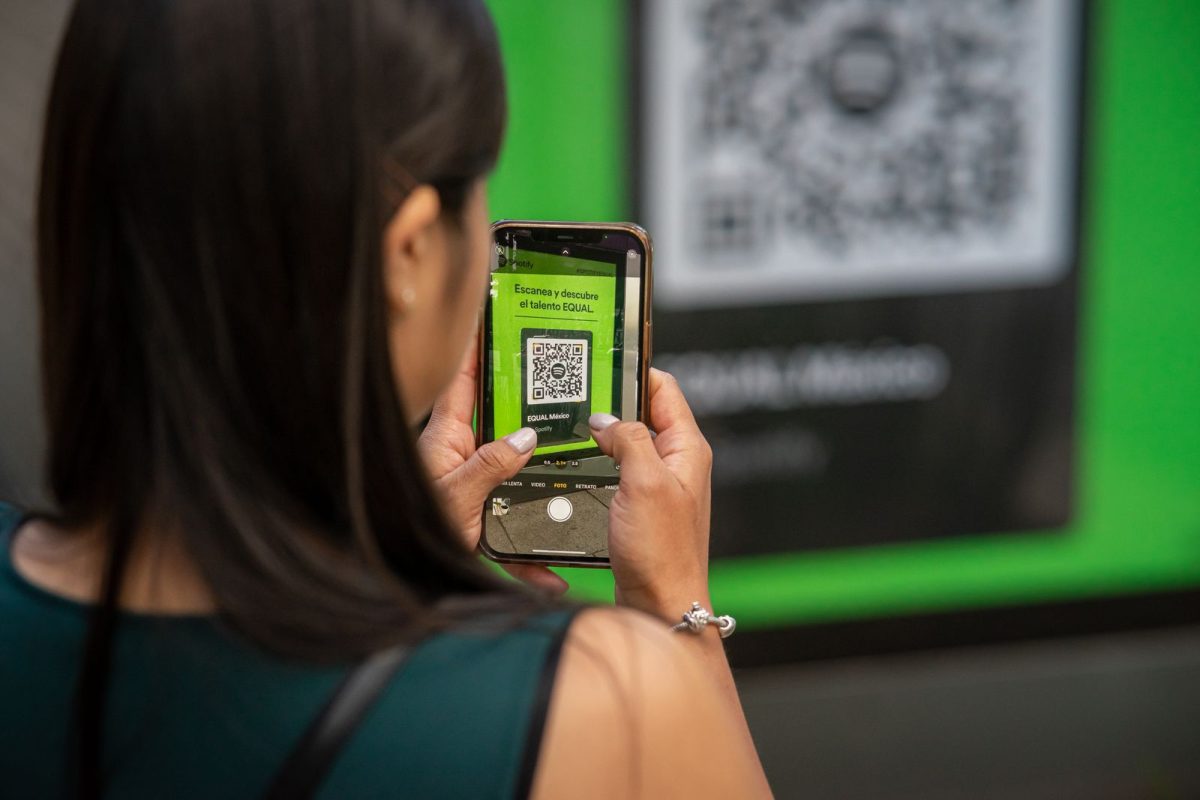
Asking a happy customer for a Google review is easy. Getting them to actually leave one is the hard part. They have to find your business on Google, tap through to the review form, and write something — and every extra step loses people. A QR code removes all of that. The customer points their phone camera at a printed code on your counter, receipt, or business card, and the review form opens instantly.
Short answer: Copy your business's review link from your Google Business Profile dashboard, paste it into a free QR code generator such as Chrome's built-in tool or Canva, download the code as a PNG, and print it on a counter card, receipt, or table tent at least 2 inches wide. It takes about 5 minutes and costs nothing.
Key takeaways
- A Google review QR code turns a 5-step process into a 2-second phone scan — and that is why it works.
- Google does not give you a QR code; you make one from your review link in about 5 minutes.
- The code itself is free — use Chrome's built-in generator or Canva's free QR tool, and skip paid generators.
- Print the code at least 2 inches wide, test it with your own phone first, and put it where customers are already happy — the counter, the receipt, the finished job.
- Never offer a discount or freebie in exchange for a review — Google bans incentivized reviews.
What it costs and how long it takes
| What you do | Cost | Time needed |
|---|---|---|
| Get your Google review link | Free | About 2 minutes |
| Generate the QR code (Chrome or Canva) | Free | About 1 minute |
| Print a counter card or tent at home | Free to a few dollars | About 10 minutes |
| Print 100 review cards at a local print shop | About $10–$20 | One day turnaround |
| Paid QR generator with scan tracking | $5–$15 per month (optional) | Not needed to start |
You do not need to spend anything to get started. The free route — your review link plus a free generator plus a home printer — is all most small businesses ever need.
Why a QR code gets you more reviews than asking alone
Think about what happens when you ask a customer to review you without a QR code. They nod, they mean it, and then they drive home and forget. A QR code fixes the timing problem: the customer can leave the review in the 30 seconds they are standing in front of you, while the good experience is still fresh. Handing someone a card with a code and a short line — "Scan this, it takes 20 seconds" — gives them something concrete to do, right now. This works for almost any local business: cafes, salons, plumbers, cleaners, pet groomers, auto shops, and landscapers. For a fuller plan around getting reviews, see our guide on how to get more Google reviews for your small business.
Step 1: Get your Google review link
Your review link is a short web address that opens your business's review form directly. Google creates it for every verified Business Profile, and you can copy it in about two minutes.
From your Business Profile dashboard: Sign in, open the "Home" tab, and look for the "Get more reviews" card. Click "Share review form" and copy the short link Google gives you.
From Google Search or Maps: Search for your business name, open your Business Profile, and look for "Ask for reviews" in the profile menu. If you cannot find it, your profile may not be verified yet — finish verification first with our Google Business Profile checklist.
Step 2: Turn the link into a QR code (free)
Google does not hand you a QR code, but making one takes about a minute. Use one of these free options.
Option A — Chrome's built-in generator (fastest). Open your review link in Google Chrome. Click the share icon in the address bar and choose "Create QR code." Chrome draws the code instantly, and you can download it as a PNG. No account, no sign-up.
Option B — Canva's free QR code generator. Go to Canva's free QR code generator, paste your review link, and click "Generate QR code." You can drop the code straight into a card design in Canva and print it from there.
Option C — a standalone free generator. Sites like QR Code Generator's free tier will also turn a link into a code. Pick the "static" code option and download the PNG — and avoid any generator that asks for your email first or puts its own logo on your code. A static code is free forever; a "dynamic" code is usually the paid tier, and you do not need it.
Download the code as a PNG at the highest resolution offered. A blurry code is the number one reason scans fail.
Step 3: Test the code before you print anything
Before the code goes on a single card, test it with your own phone. Open your camera app, point it at the code on your screen, and tap the link that pops up. It should open your business's Google review form — with your business name at the top and the star rating ready to tap. If it opens anything else, you pasted the wrong link: copy it again from step 1. Test it a second time on a different phone if you can, ideally an iPhone and an Android.
What to print on the card (copy this)

A bare QR code on a blank card gets ignored. People scan when they know what they are scanning for and how long it will take, so put a short line above the code and your business name below it. Here is a layout for a counter card, table tent, or business card:
Loved your visit today?
Scan the code below to leave us a quick Google review — it takes about 20 seconds, and it really helps our small business.
[Your QR code here]
[Your Business Name]
Keep the words short and the code big — the code should be the largest thing on the card. Use black code on a white background, leave a clear white border around it, and do not print it over a photo or a busy pattern, because low contrast is a common reason scans fail. For service businesses that leave an invoice instead of a card, add the same code and one line — "Happy with the work? Scan to review us on Google" — at the bottom. For word-for-word scripts for the in-person ask, see our copy-paste Google review request scripts.
Where to put your QR code: 7 places that actually get scans
A QR code only works if a customer sees it at the right moment — when they are happy and have their phone in their hand.
| Where to put it | Why it works | Cost |
|---|---|---|
| Counter card or table tent | Customers see it while paying — the happiest moment of the visit | Free to print at home |
| Receipt or invoice | Goes home with the customer and sits on their kitchen counter | Free — add it to your template |
| Business card | Hand it over with a smile and a one-line ask | A few cents per card |
| Takeout bag, box, or packaging | Scanned at home, right after the customer enjoys the product | Sticker printing, about $10–$20 per roll |
| Service van or shop window | Neighbors and passersby can scan it without coming inside | One-time decal, about $10–$30 |
| Email signature and thank-you emails | Reaches customers after an online order or booking | Free |
| Your website's thank-you or contact page | Catches customers who found you online and want to say thanks | Free |
Start with the first two — a counter card and the receipt — because they cost nothing and reach every customer. Add the rest once you see reviews coming in. And remember the code is only half the job: someone on your team still has to ask.
5 mistakes that kill your QR code reviews
Most QR review codes fail for boring, fixable reasons. Check yours against this list before you print.
1. The code is too small. Print it at least 2 inches wide on cards and tents. A code the size of a postage stamp will not scan reliably in dim light. If it has to be small — on a business card, for example — test it at that exact size before ordering a full batch.
2. The code links to your homepage, not the review form. If the scan opens your website, the customer has to find the review form themselves — and they will not. Always link the review form directly.
3. You never tested it. Codes get printed from the wrong file or saved at low resolution. One test scan on your own phone catches all of it.
4. You offer a reward for a review. Google is clear: offering a discount, a freebie, or a prize-draw entry in exchange for a review is against its policies, and it can get reviews removed. Ask honestly, never pay for it. See Google's own tips to get more reviews.
5. Nobody on your team asks. A printed code is a tool, not a strategy. Pair the code with a simple habit: every team member asks every happy customer, every time — "If you enjoyed it today, this card takes 20 seconds."
One more habit matters after the reviews start arriving: answer them. A short thank-you on every positive review shows future customers that you pay attention. Our guide on how to respond to positive Google reviews has short reply templates you can reuse.
How to tell if it is working
Count reviews, not scans. A free static QR code does not report scan numbers; the number that matters is new Google reviews per week. Write down your current review count today, put the code out, and check again in two weeks. If it is flat, the problem is almost never the code — it is that nobody is asking. For more ideas for reaching local customers, see our local marketing ideas for small towns.
Frequently asked questions
Does Google give you a QR code for reviews?
No. Google gives you a short review link in your Business Profile dashboard, and you turn that link into a QR code yourself with a free tool such as Chrome's built-in generator or Canva. It takes about a minute.
Is it free to create a QR code for Google reviews?
Yes. The review link is free, a static QR code from Chrome or Canva is free, and printing a counter card at home is free. Optional costs: professional card printing (about $10–$20 for 100 cards) or a paid generator if you want scan tracking.
How big should I print the QR code?
At least 2 inches (about 5 cm) wide on counter cards, table tents, and receipts. That size works for older phones and dim restaurants. Test the printed card with your own phone before ordering a large batch.
Can I put the QR code on my website and emails too?
Yes. Add it to your thank-you page, your email signature, and your post-purchase emails. On a website, though, a plain clickable "Review us on Google" link is even easier than a code, because the customer is already on a screen. Use the code for print and the link for digital.
Conclusion
A QR code for Google reviews is one of the cheapest marketing moves a small business can make: five minutes, zero dollars, and a direct path from a happy customer to a public review. Get your review link, turn it into a free code, print it big, test it once, and put it where customers are already smiling — the counter, the receipt, the finished job. Then make the ask a habit. Start today and count your reviews in two weeks.



0 Comments
No comments yet. Be the first to share your thoughts!